
Team Files & Project Files
Two levels of file sharing — workspace-wide and per project.
INTEBEE has two file areas, scoped differently:
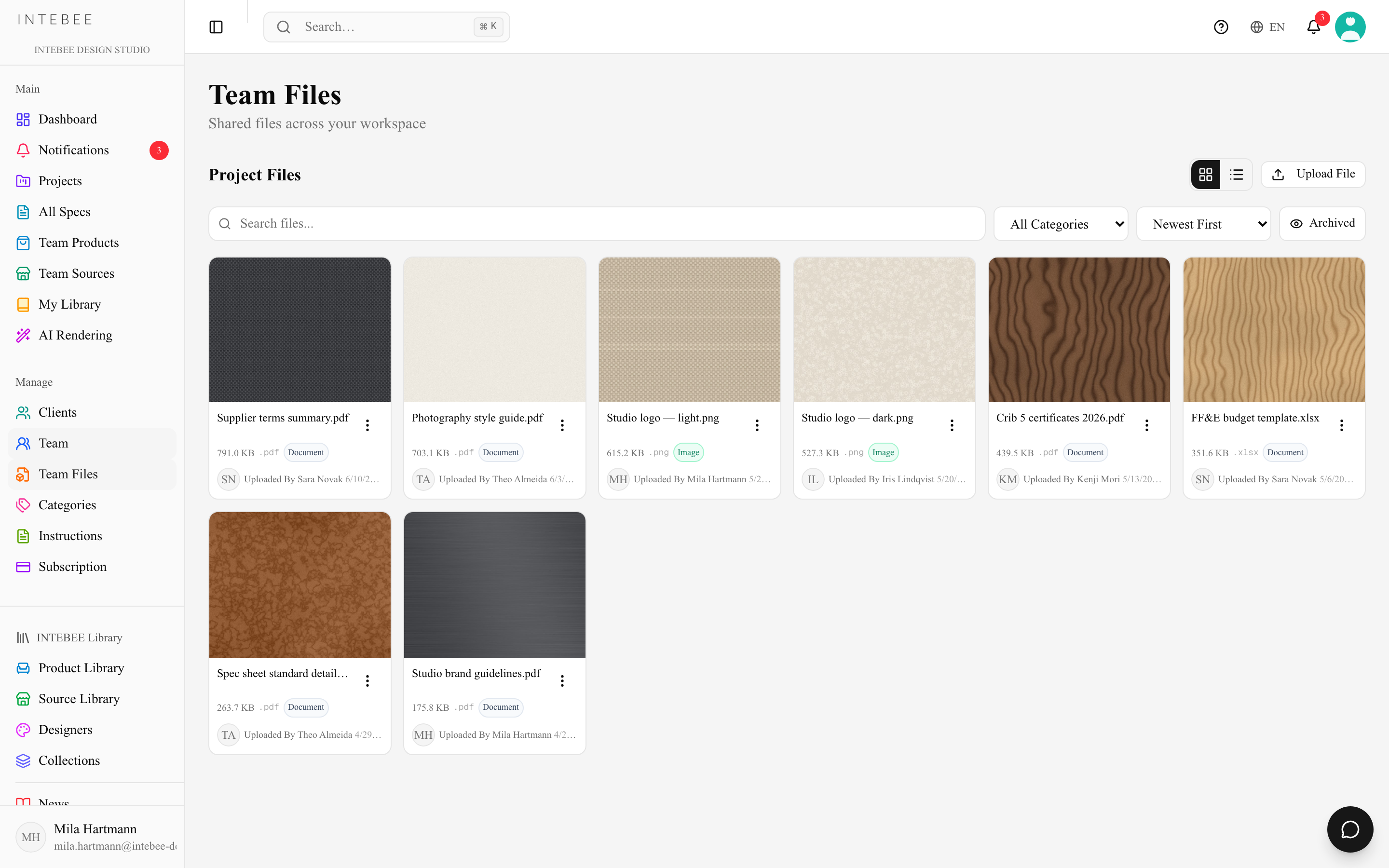
Team Files
Team Files (sidebar → Manage) is workspace-wide storage for assets the whole team reuses — logos, templates, standard details, brand guidelines. Every member can browse and download; uploads count against a monthly allowance set by your plan.
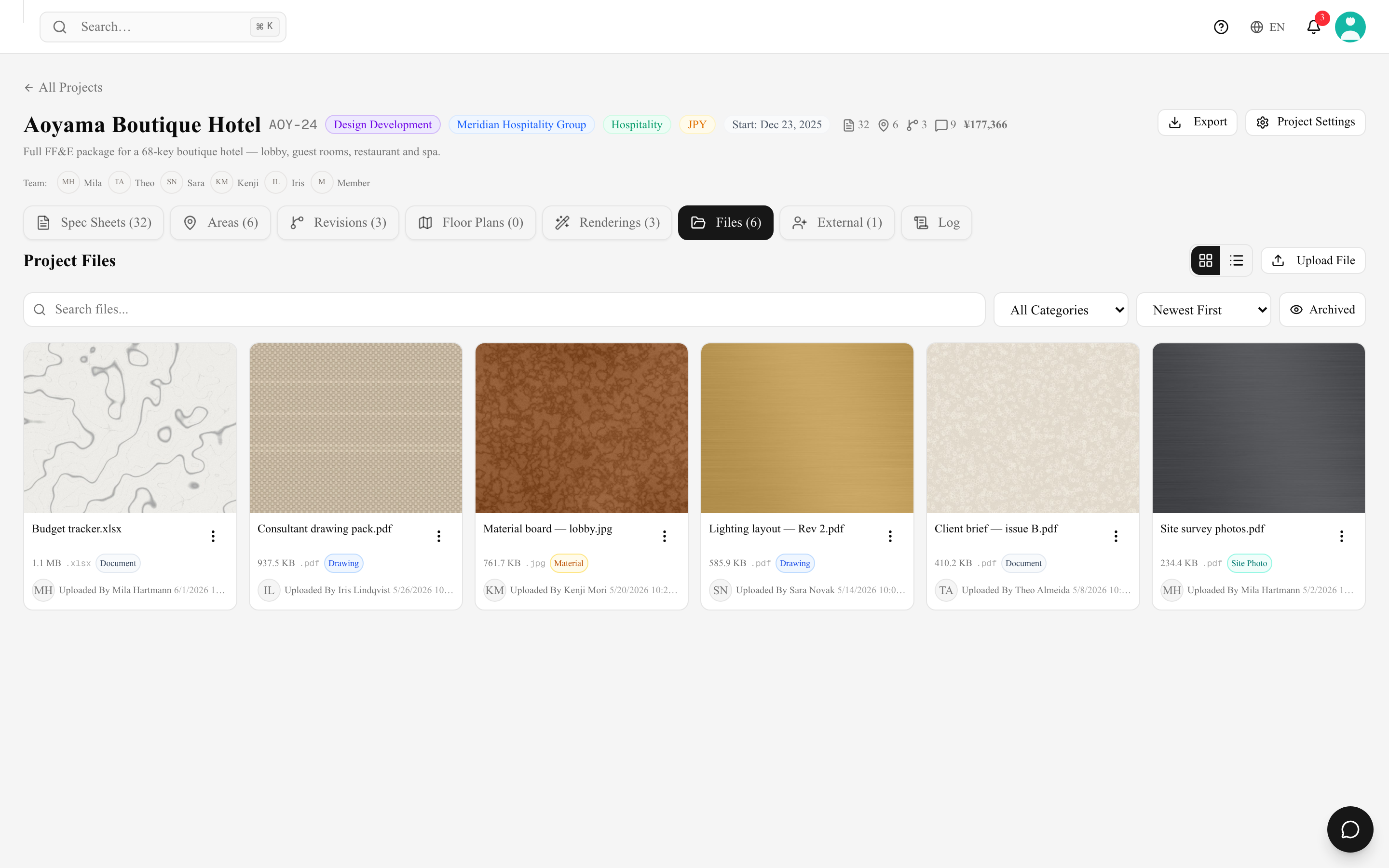
Project Files
Each project's Files tab holds job-specific documents — site photos, client briefs, consultant drawings, renderings. Project files are visible to project members, and the latest shared files are also visible to that project's external collaborators.
Uploading
- Drag and drop or use the upload button.
- Images up to 20MB are accepted and automatically compressed for fast preview while keeping quality.
- Files per project and team uploads per month follow your plan's limits — the upload dialog tells you when you've hit one.
- Delete (in a file's menu) asks first, then removes the file from Team Files or the project's Files tab and turns its share link off. A deleted project file no longer counts toward the files-per-project limit; team uploads already made this month still count.
- File Name — optional when uploading (the file's own name is used otherwise) and editable later from Edit File. Up to 200 characters; extra spaces are trimmed and the characters
/ \ : * ? " < > |are removed. The name can't be left empty.
You can drop several files at once, or pick several in the file dialog: each one is uploaded in turn, a file that can't be uploaded is named in its own message, and the result reads "3 of 3 files uploaded.". With several files, each keeps its own name — File Name applies only when you upload a single file. Single-image targets (a main image, a cover image) take one file: drop several there and the first is used, with a message that the others were not uploaded.
Tips
- Put reusable assets in Team Files, one-job material in Project Files — future you will find things faster.
- For deliverable documents (spec books, plans) prefer generating fresh PDF exports over uploading stale copies.