
Language Settings & Multilingual Documents
Interface language, the second language that makes a printed sheet bilingual, and the field labels behind it.
INTEBEE separates three kinds of language, so your interface, your documents and the public site can each speak the right one.
1. Interface language (per user)
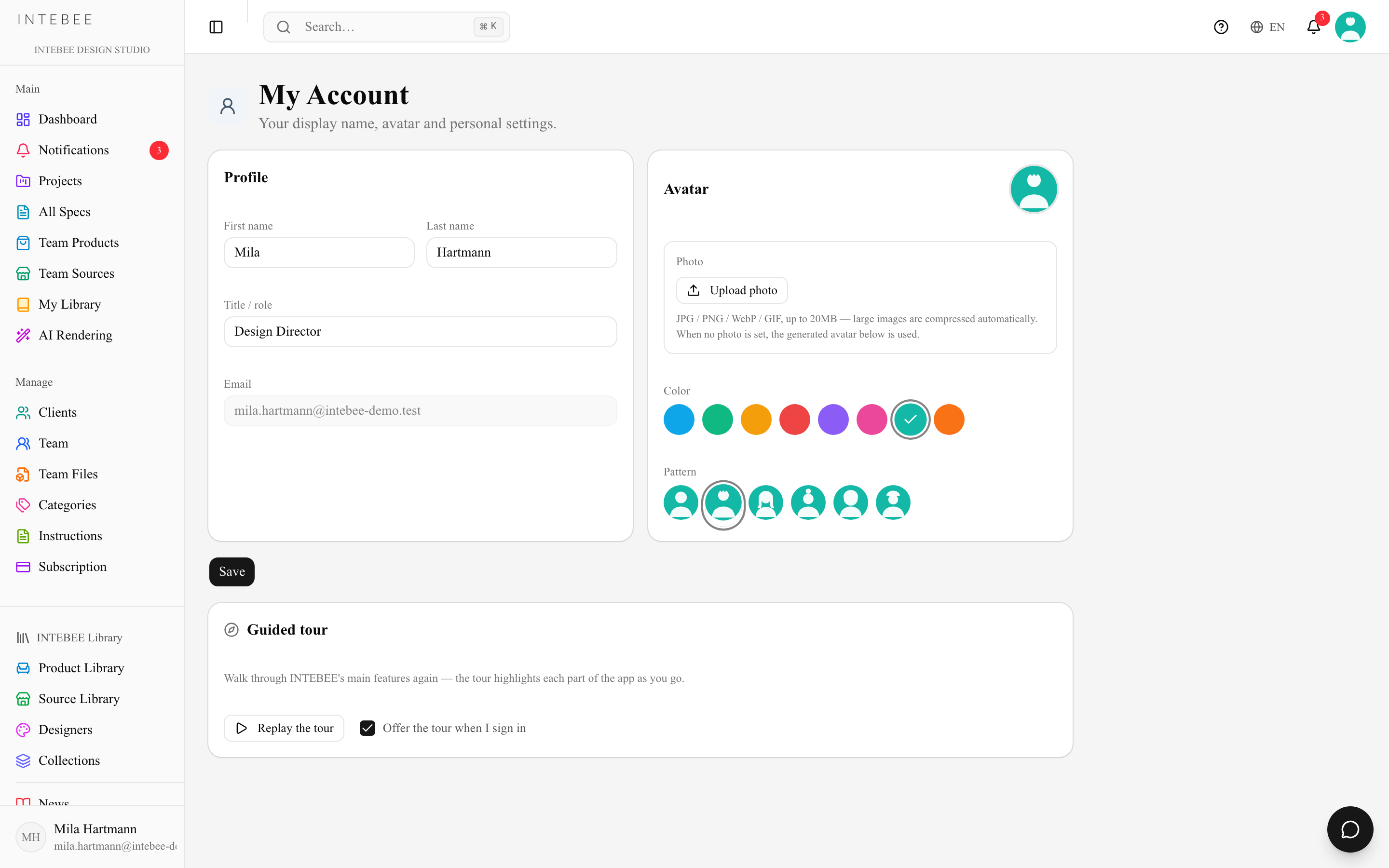
Each user picks their own app language: the globe button in the header, or App Language in the user menu. Eight languages — English, 日本語, 中文, 한국어, Français, Deutsch, Español, Italiano. This changes menus and labels only, never your data. English is the default and the fallback for anything untranslated.
2. Document languages
Two settings decide what a printed sheet says, and they cascade from the workspace down to the project.
Workspace defaults — Settings → General
In the Languages card:
- Default Spec Sheet Language — the language new projects print and export in, and the one product category names follow. Projects can override it individually.
- Enable dual language by default — new projects start with a second language switched on.
- Default second language — which language that is.
- The language step of the first-run setup sets the same pair: its Turn the second language on for new projects checkbox is this switch (what prints is chosen per export, below).
Press Save Settings when you're done.
A second language on spec sheets requires the Studio plan. On other plans the switch is shown with the note "A second language on spec sheets is available on the Studio plan."
Per project — Project Settings
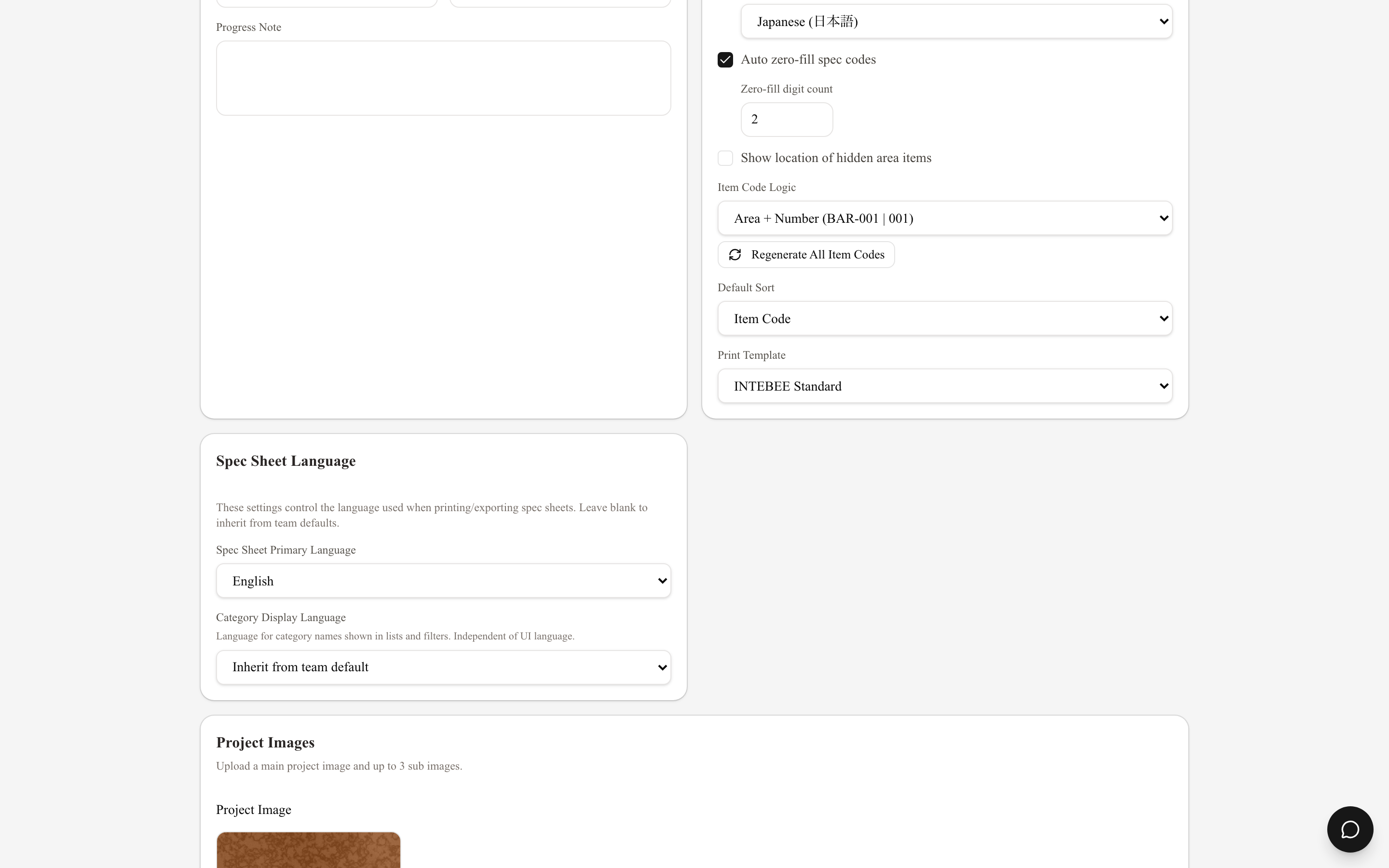
The Spec Sheet Language card holds everything a project needs:
- Spec Sheet Primary Language — leave it blank to inherit the team default.
- Enable second language and the Second Language beside it. That is what gives every text field on every sheet in the project its paired second-language input. Switching it on, or changing the language, offers to apply it to the sheets already in the project. The switch is saved together with a language: switching it on with no language chosen only opens the language picker, and the project stays single-language until you pick one.
Item code options live in their own Code Settings card on the same page. There is no separate category display language: category names print on the sheet, so they follow the primary language above.
Per sheet
With a second language enabled, every text field on the sheet has a paired second-language field. Type the translation, or use the translate button beside the field to fill it automatically. Translate All fills every empty second-language field on the sheet in one pass for 1 AI credit. Automatic translation is part of the Studio plan; on other plans you enter translations by hand.
At export time, Language in the Export dialog chooses Primary Language, Second Only or Show Both, and 2nd Language Size controls how large the second language prints in Show Both.
A second-language value identical to the primary one (ignoring formatting, spacing and letter case) is printed only once in Show Both — see Dual-language documents. The stored value is not changed.
3. Settings → Labels — the printed field labels
Filling in the second-language content is only half of a bilingual sheet. The other half is the labels: "Item Code", "Dimension", "Manufacturer", "Required Items". Those live on their own page: Settings → Labels, headed Print Labels.
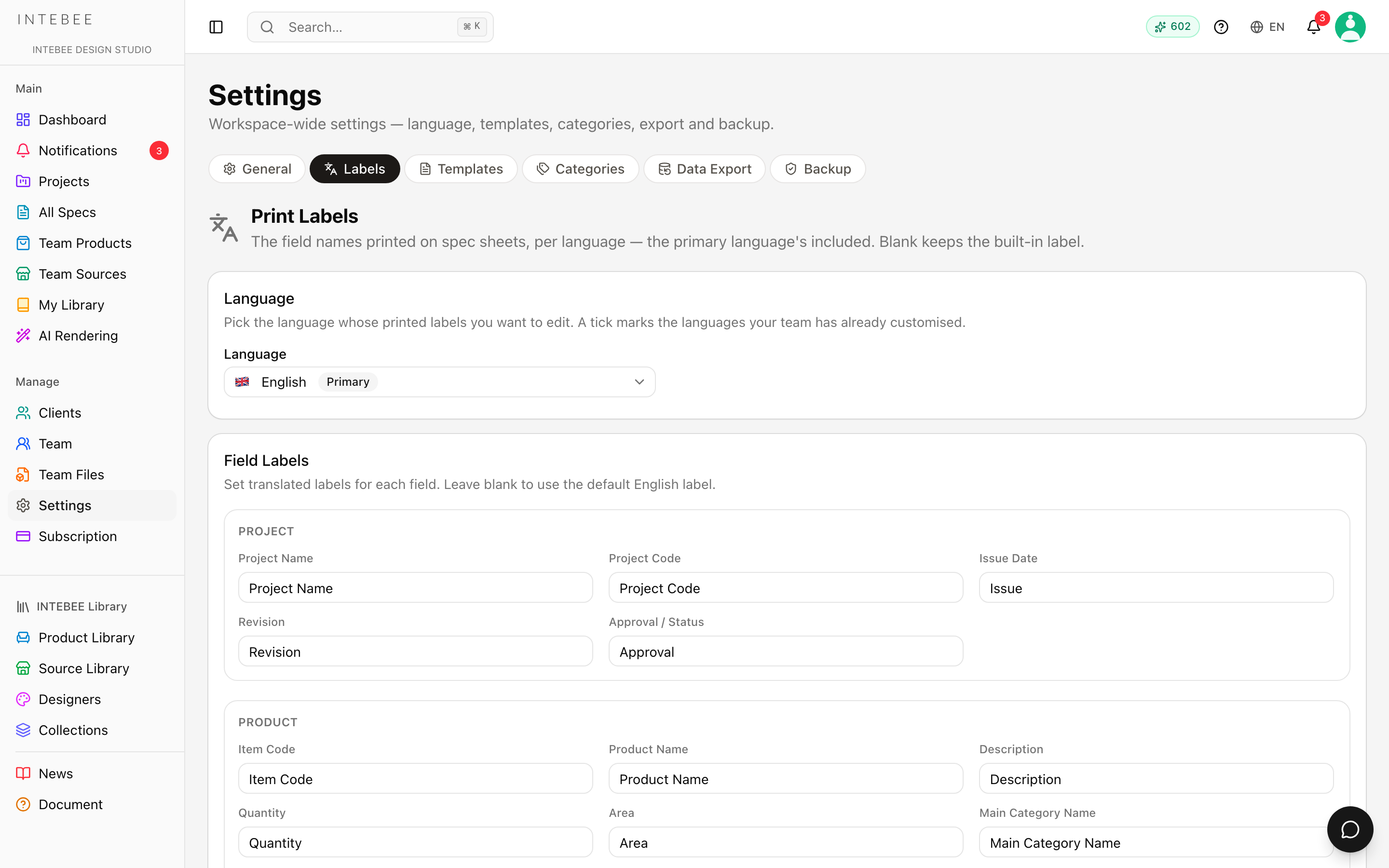
- Pick the language you want to edit from the Language dropdown at the top. A Primary badge marks your Spec Sheet Primary Language, a 2nd badge marks the team's default second language, and a tick marks every language whose labels your team has already customised. The primary language's labels are editable too — this is where you rename "Remarks" to whatever your office calls it, in any language.
- The Field Labels card below holds 46 fields, grouped the way they appear on a sheet: Project (Project Name, Project #, Issue, Revision, Approval / Status), Product (Item Code, Item Name, Description, Quantity, Area, category names, Finish, Upholstery, Required Amount), Dimensions (Dimension, W / D / H, Other), Price, Manufacturer / Source (Source, Contact, Address, Phone, Email, Website, Others), Instructions & Remarks, Required Item (the Required Item heading plus one label per built-in requirement tag), and Cover & Contents Pages.
- Leave a label blank and the built-in one is used, so nothing ever prints empty.
Press Save Language Settings. This page is what actually makes a printed sheet bilingual — skip it and a Second Only export shows translated content under English headings.
Requirement tags carry translated names of their own as well, managed in the Requirement Tags card on Settings → General. A Second Only export prints the translated tag names, falling back to the primary name for anything untranslated.
4. Public content languages
The INTEBEE Library, the blog and this Help Center are published in 8 languages (English, 日本語, 中文, 한국어, Français, Deutsch, Italiano, Español) with English as the canonical fallback. Use the language switcher on any public page.
Tips
- Set your team's most common second language as the workspace default so new projects start correctly.
- Do the Settings → Labels pass once, at the start of your first bilingual project. It is the highest-leverage half hour in the whole setup.
- Item codes, model numbers and brand names are usually best left untranslated — keep them in the primary field.