
Global Search Tips
Find anything with ⌘K — projects, specs, products, clients, and help.
Press ⌘K (Ctrl+K on Windows) anywhere in INTEBEE to open global search.
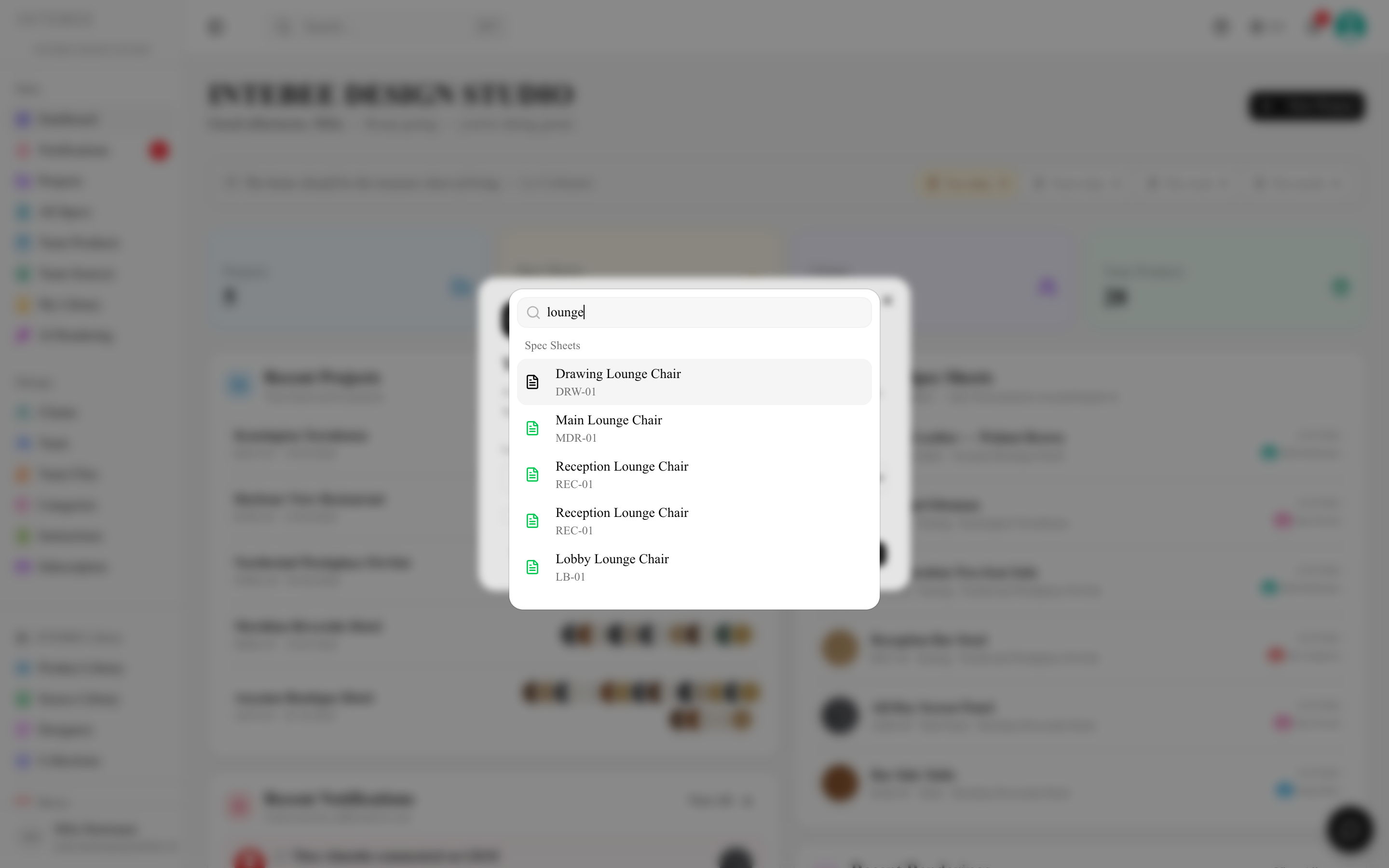
What it searches
Results are grouped by type, five per group:
- Projects — by name, including projects other teams have shared with you as an external collaborator.
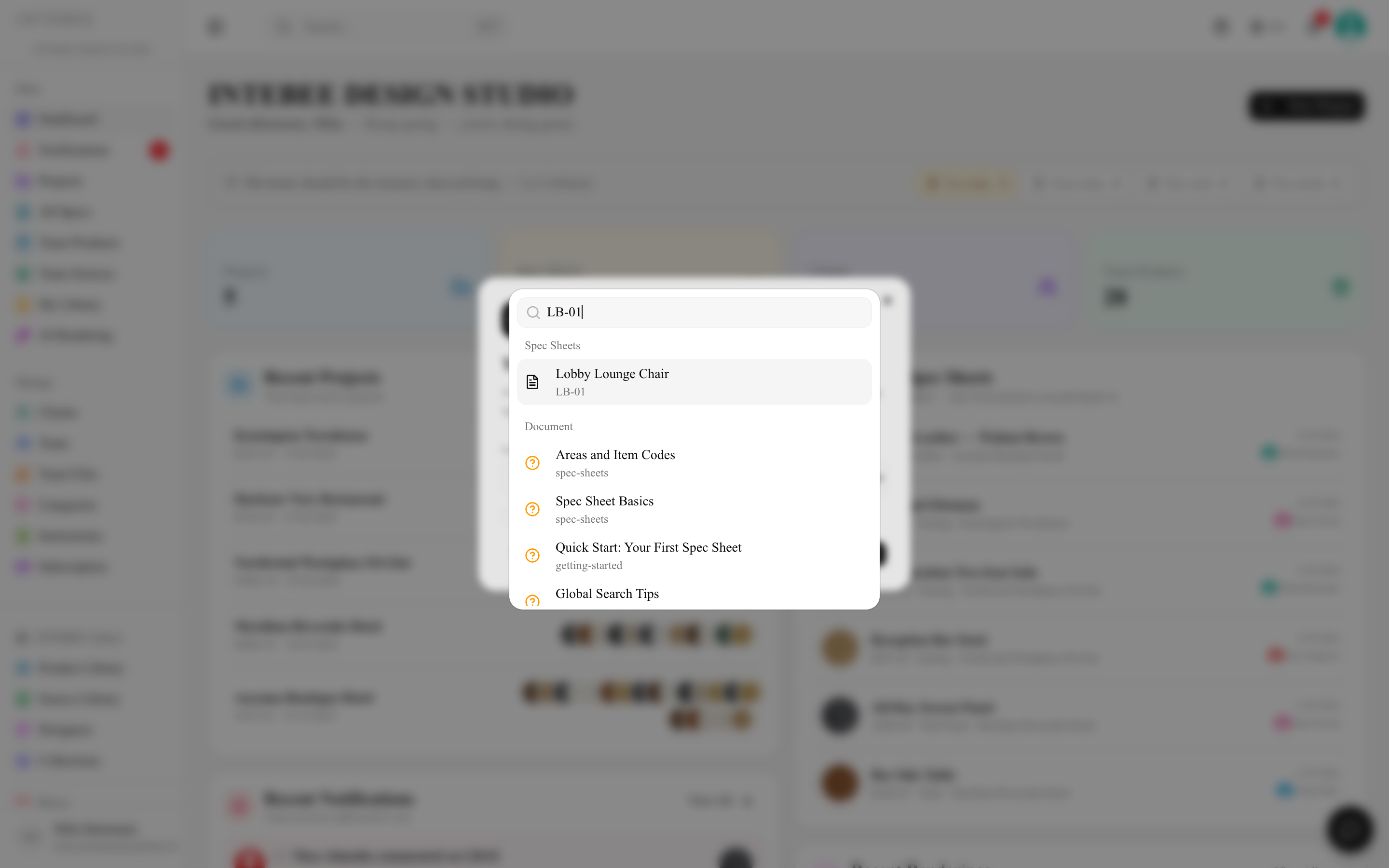
- Spec Sheets — by name or item code (jump straight into a sheet from anywhere).
- Products, Sources, Designers — your catalog and the public library.
- Clients — your directory.
- Document — articles from this Help Center, opened in a new tab. (The same name as the Document link in the header and sidebar.)
Select a result to jump to it; View all results for “…” at the bottom opens the full search page.
Tips
- Item codes are gold: searching
LB-01beats scrolling a 200-sheet project. - Type at least 2 characters; results update as you type.
- Document results match your interface language when a translation exists.
- Inside big lists (products, specs) the page-level filters are often faster than global search — global search shines for cross-project jumps.
- The search box on a project's Spec Sheets tab matches the name, item code and description in both the first and the second language, ignoring upper/lower case and full-width/half-width characters (
LBfindsLB). Text formatting inside descriptions is not searched. When nothing matches, the list says so — "No spec sheets match …" — instead of looking empty. - A long spec list only draws the rows on screen (plus a few above and below) and adds more as you scroll, so it opens quickly even with thousands of spec sheets. Your browser's own Find (⌘F / Ctrl+F) therefore only sees the rows currently drawn — to find a spec anywhere in the project, use the search box on the Spec Sheets tab, or ⌘K. Select all, Shift-click ranges and the export still cover every row, drawn or not.
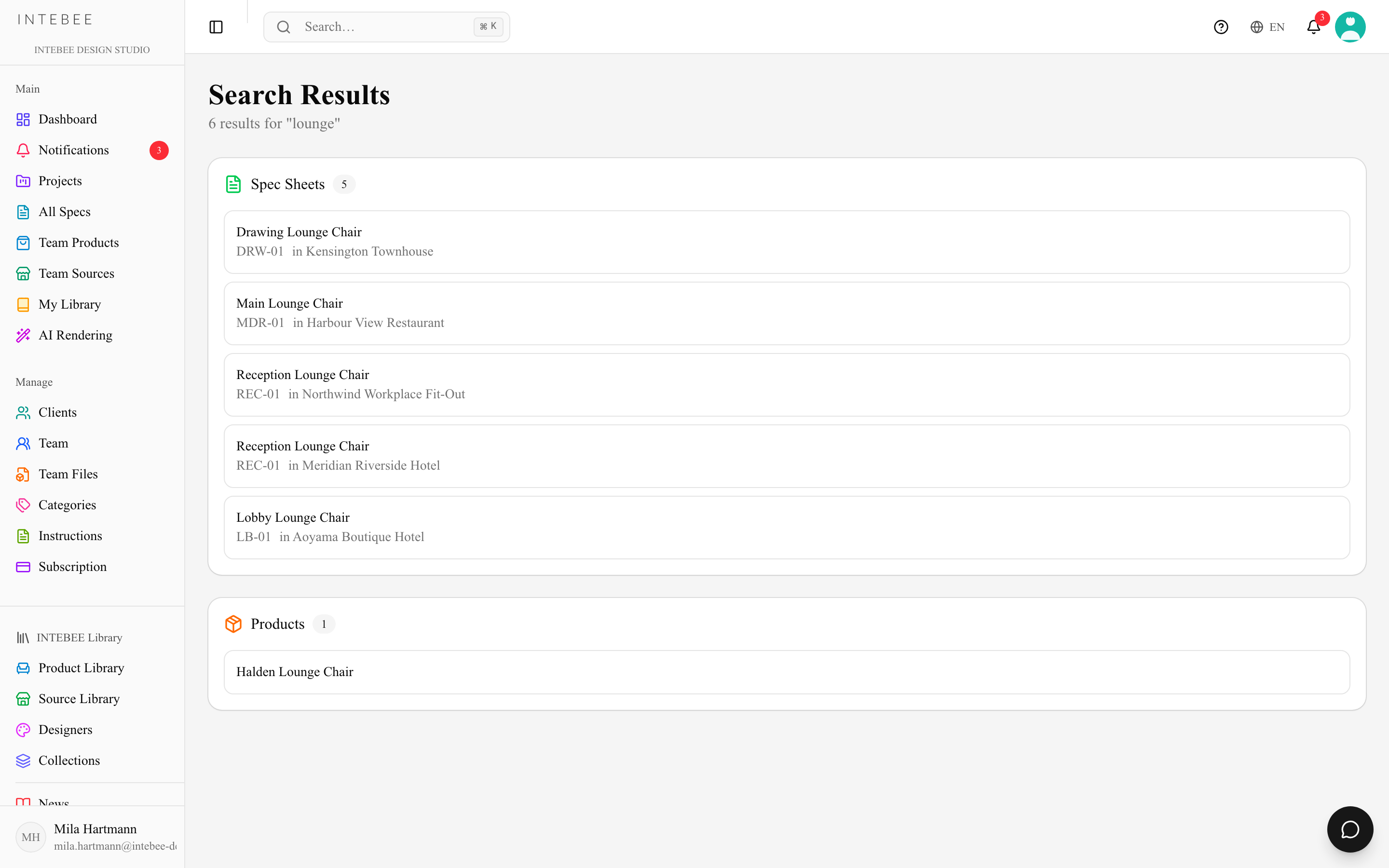
Within each group the most relevant matches come first: an exact match, then item codes that start with what you typed, then names that start with it, then the rest — so Spec 05 lists Spec 050, 051, 052… in order. ⌘K / Ctrl+K does nothing while you are typing in a text field (press it again inside the search box to close the palette), and ⌘B / Ctrl+B, which shows or hides the sidebar, is likewise ignored in text fields, where it means bold.