
The INTEBEE Library: Designers & Collections
Browse the public catalog of curated products, brands, designers, and collections.
The AI Public Library section of the sidebar opens the public, curated side of INTEBEE — content maintained by the INTEBEE team and available to everyone.
Product Library — the INTEBEE AI Public Library
The INTEBEE AI Public Library is AI curated: INTEBEE's AI gathers the world's design furniture and interior products from the makers' official sources, so you can search across brands in one place. Furniture and interiors travel through complex distribution and supply chains, and there has never been one place to search them all — the library aims to be that hub. It is the first entry in the sidebar's AI Public Library group. Beside AI curated, a Research purpose badge says what the library is for: research, commentary and critique based on the official sources; a third badge shows how many products are public (for example 2,776 products).
- The same catalog as the public site: the same search, category icons, filters, sort orders, card sizes (small / medium / large or a list), cards and endless scroll as intebee.com/library. The only differences: the filters sit in the right-hand column (on a phone, behind the Filters button), and each card carries the Save to My Library button.
- Tabs along the top: Featured (the default view, tinted and marked with a sparkle icon), All products, Timeline, Designers and Brands (the Source Library) — the same as on the public site. On Featured, a designer or brand opens All products filtered to their products.
- Filters, sort and view are kept in the page address, as on the public site — not saved to your account or team. Defaults: Featured order, medium cards, grid.
- Detail: a card opens a large window showing the product's public page itself — the same article, images, specifications and sources as signed-out visitors see. Related products open in the same window; links to brands and designers open in a new tab. Open the public page opens it in a new tab.
- Save to My Library (bookmark icon on each card and at the top of the detail window) is only available signed in; saved products can be imported straight into a spec sheet from My Library.
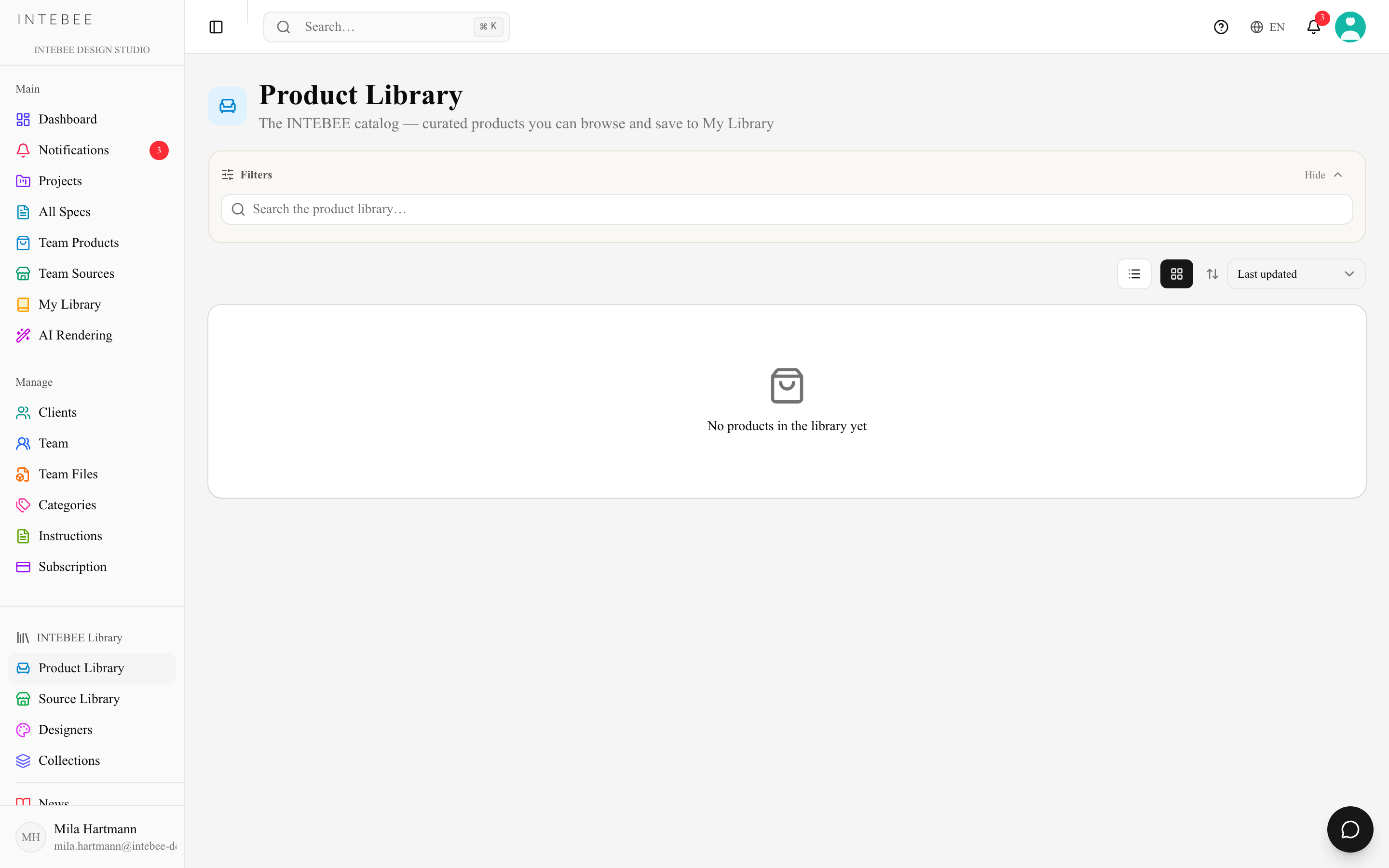
Source Library
A catalog of furniture brands and manufacturers with profiles, stories, and product listings. Use it to discover sources you don't already work with, then bookmark them into My Library.
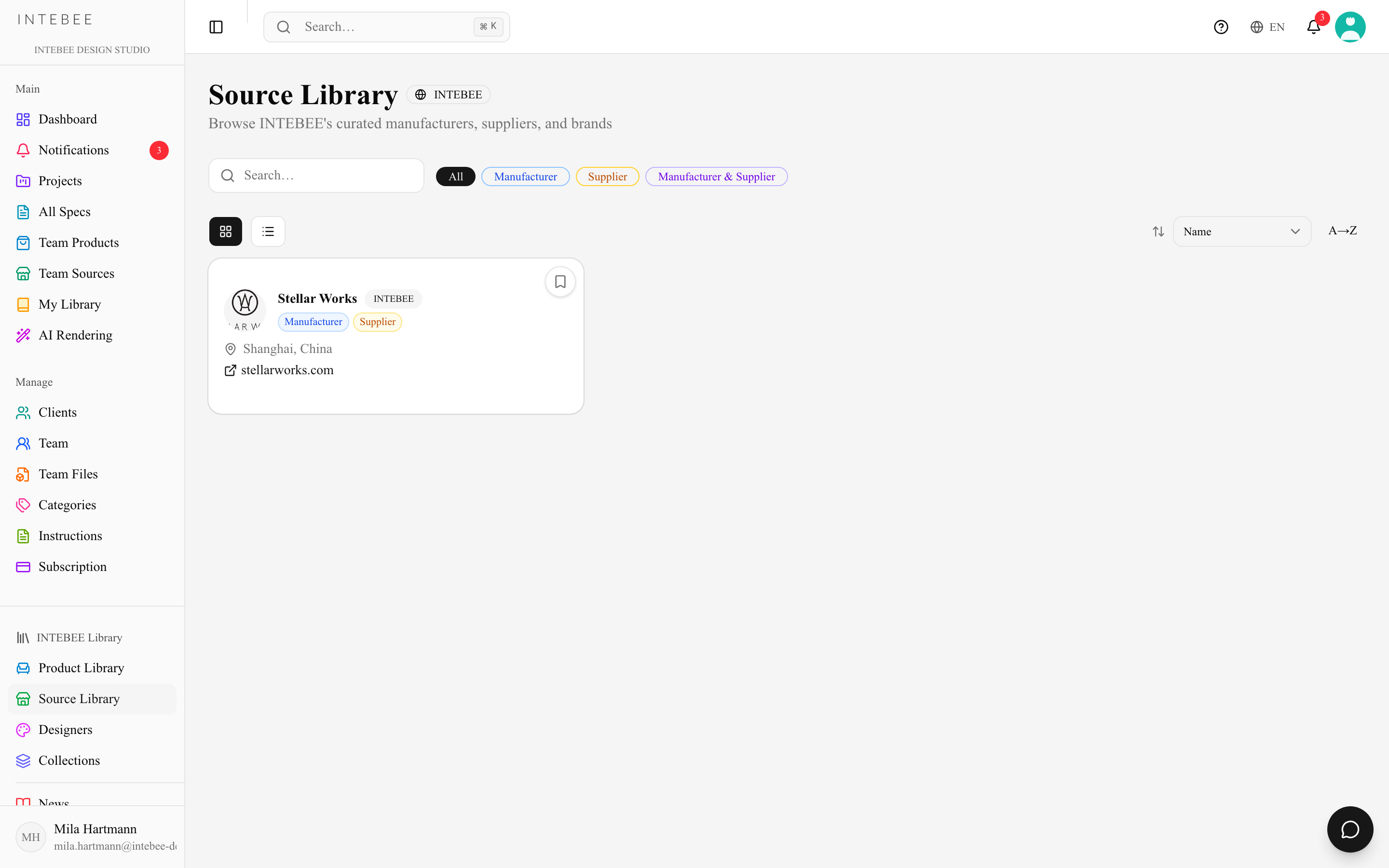
Designers
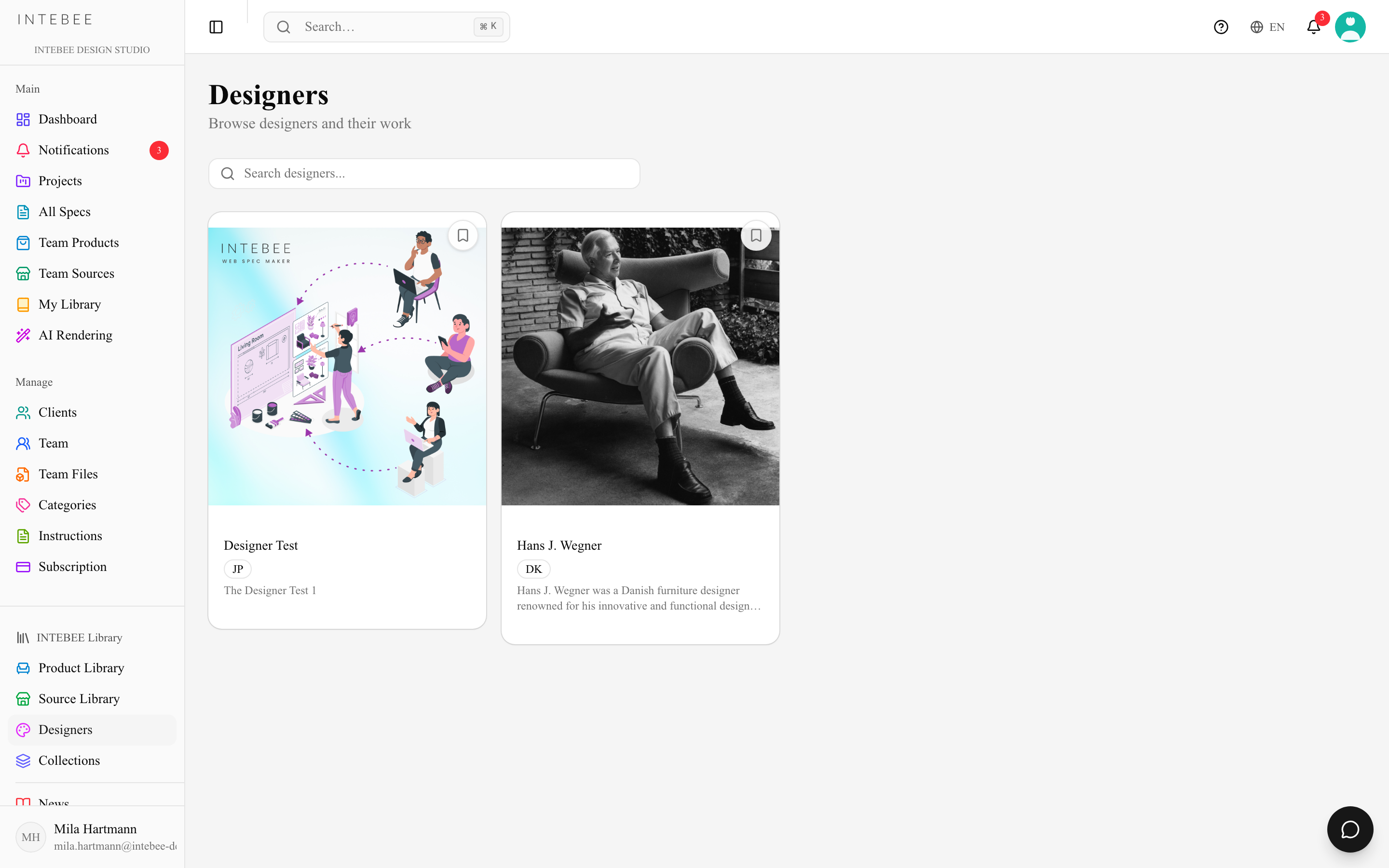
Profiles of furniture and interior designers — their story, notable works, and the products attributed to them. Designer links appear on products, so you can navigate from a chair to its designer to their other pieces.
Designer and collection pages are maintained by INTEBEE: the Edit button appears only for INTEBEE administrators. A designer's description is shown formatted (headings, bold text, lists), as on the public library. For an AI draft, Approve saves every current form adjustment before approving it; you do not need to select Save Changes first.
Collections
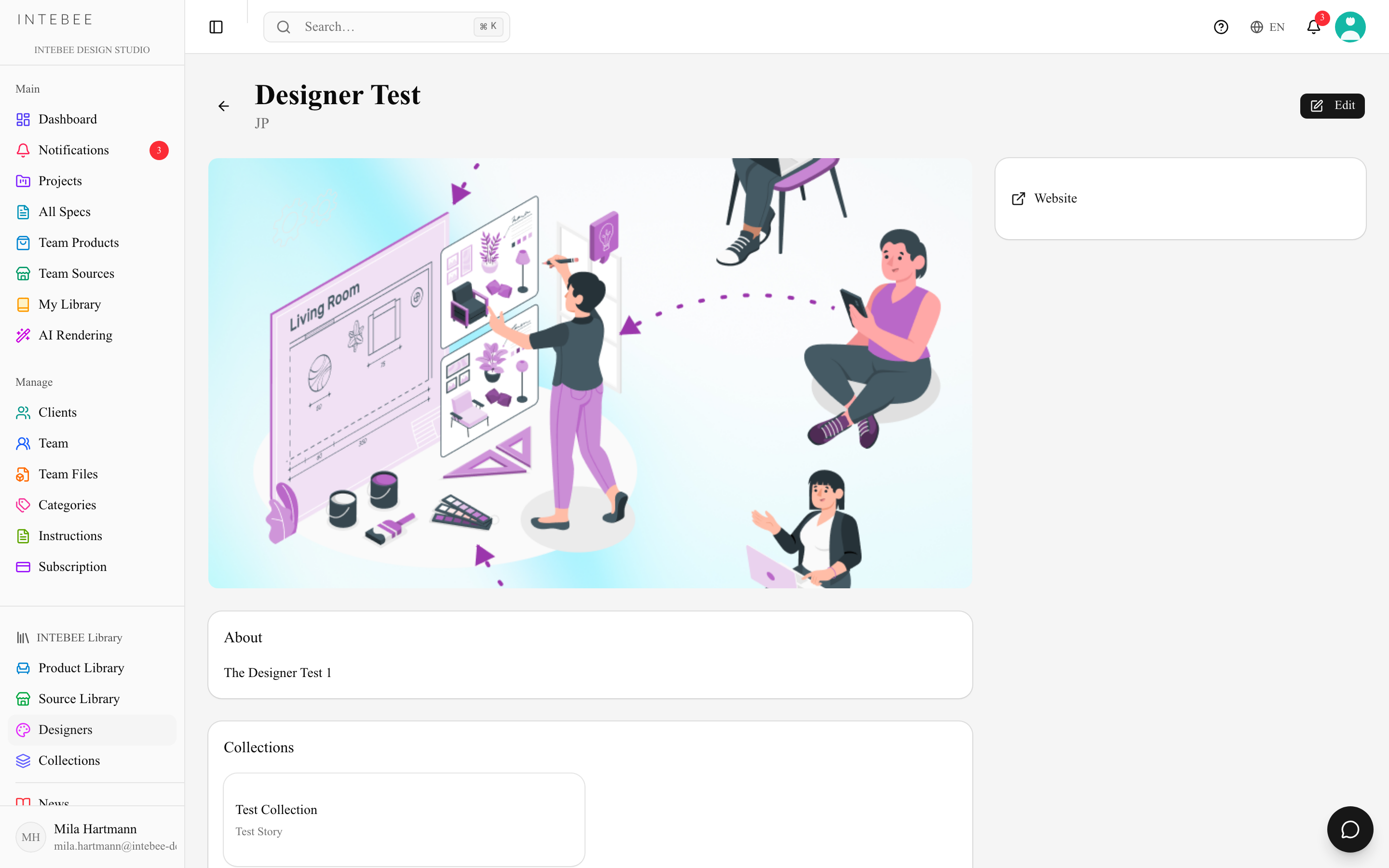
Collections have no tab of their own. When a product belongs to a collection, its page shows the collection near the end — a small picture, a line about it and its other products; the collection name above the product title jumps there.
Curated groupings — a brand's product line, a style movement, a material story. Collections are a fast way to build a mood or find coherent families of products for a project.
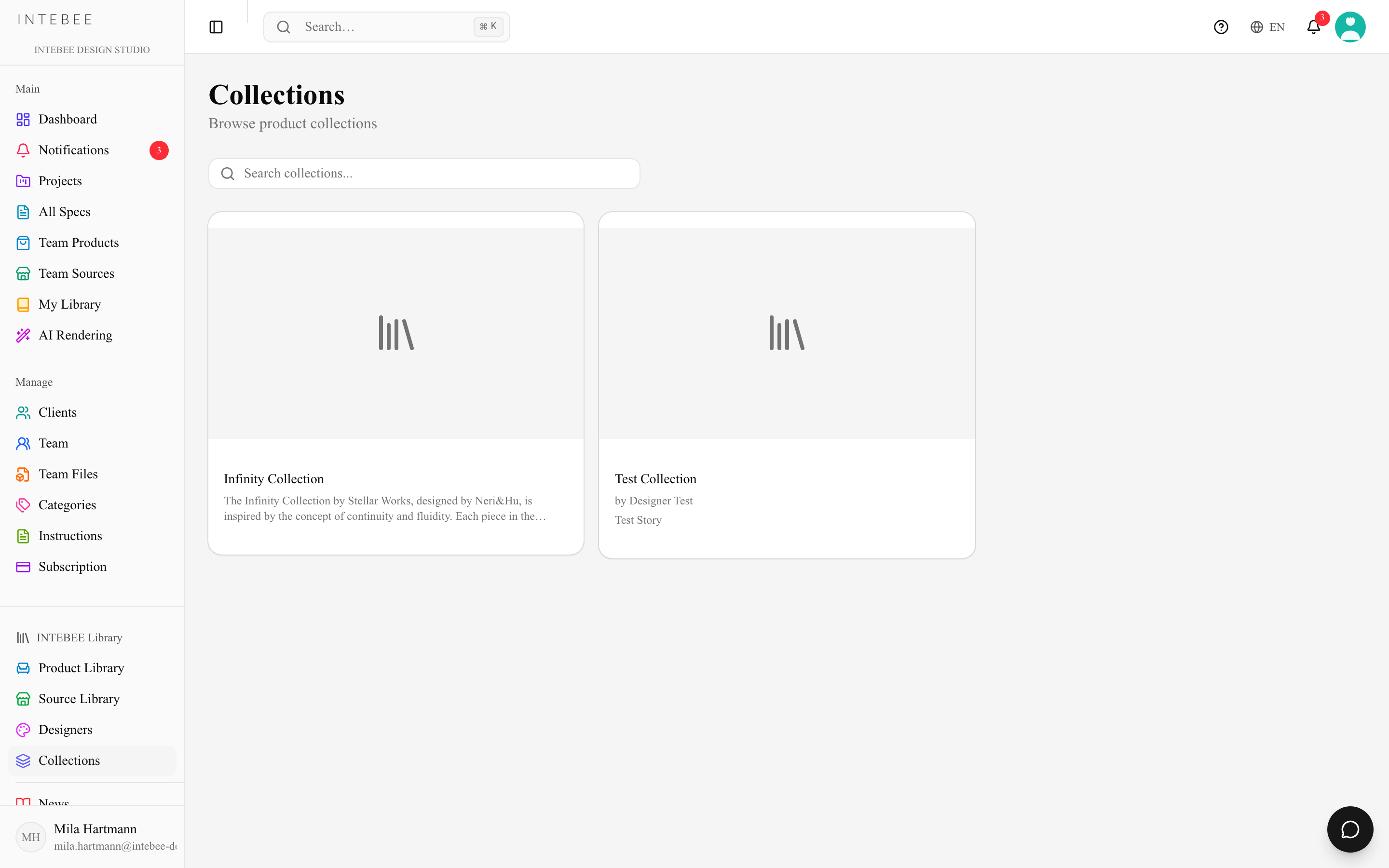
When a designer or collection does not yet have an image, its card and detail page show the first letter of its name as a neutral placeholder. This means the Library entry exists but its image has not yet been added or approved.
Browsing the public Library
The public Library at intebee.com/library — the INTEBEE AI Public Library, marked AI curated — is a catalogue you can browse across brands and designers, like a museum index. It opens on Featured (editorial picks, the most viewed, new arrivals, and designers and brands to know); tabs along the top switch to All products (intebee.com/library/products), Timeline, Designers and Brands. Featured mixes layouts — a large card beside small ones, blocks side by side and rows that scroll sideways; on every visit it picks three sub-categories (shown together), two moods and two styles at random, each on its own tinted panel. Small cards show the designer and brand but not the price band. Signed in, the sidebar group AI Public Library lists Featured, All products, Timeline, Designers, Brands and Collections — the same as the tabs. The page heading reads AI Archive Library. Sideways rows scroll with a swipe or the round arrow buttons; the cards in each block also change on every visit.
- Layout: on a computer, one column beside the results holds everything you use to narrow them — the search box, View & sort (order, card size, grid or list), then the filters. On a phone the search box stays above the results and the rest opens with Filters. Designers, Brands and Collections work the same way: search, sort by name (A–Z / Z–A), most products or newest, small / medium / large cards or a list, and filters by country, category, brand and designer(each kept in the page address). The column stays in view while the results scroll and scrolls on its own; countries show their flag, and categories, styles and moods show an icon (point at a category icon to see its name). Signed in, AI Public Library → Designers, Brands and Collections show the same pages with the column on the right and Save to My Library on brands and designers.
- Search: the search box searches as you type — product names plus the names of designers, brands, collections, categories and style, material or mood tags. Spaces, hyphens, capitals and accents don't matter, so "loungechair", "Lounge-Chair" and "lounge chair" find the same products, and "gebruder" finds Gebrüder Thonet.
- Filters (the left column; on a phone, the Filters button): category and sub-category, designer, brand, price range, style, material and mood (the feel of a piece — Elegant, Playful, Warm…). Long lists have their own filter box. Choices in one filter widen the results (Sofa or Lounge Chair); different filters narrow them. The number beside each choice is how many products you would get. In the Category section, the small icons are a shortcut for category and sub-category — point at an icon to see its name.
- Sort: Featured, Newest, Most viewed, Most saved, Name, Year designed, or Price range (low to high / high to low).
- View: small, medium or large cards, or a list.
- More products load automatically as you scroll.
Each card shows the category and sub-category, the designer and brand, the year designed (calendar badge) and an indicative price range ($ badge, ●●●○○ from 1 to 5, worked out from the official list price). When the year or price isn't published, the badge shows a dash. Filters, sort and view are kept in the page address — not saved to your account — so you can bookmark or share a filtered view; the defaults are Featured, medium cards, grid.
On a product page the reference price is an approximation: the official list price is converted with fixed reference rates (not live rates) into the currency of the page language (English: US dollars, Japanese: yen, Chinese: yuan, Korean: won, French / German / Italian / Spanish: euros) and rounded, for example "Approx. $1,300 (reference price; varies by region and retailer)". The real price depends on the region, the retailer and the configuration. When no usable price is on file, the price line is not shown. The in-app Product Library shows the same approximate figure on its cards.
Timeline
The Timeline tab (intebee.com/library/timeline; signed in, AI Public Library → Timeline in the sidebar) shows every product with a known design year along one line at the bottom, from the earliest year on file to the latest. Each product is a round picture placed at its year and stacked above the line, the most viewed nearest to it.
- Zoomed out, the circles are small and neighbouring years share one stack. Nothing is hidden: a stack taller than the frame shows ↑ +N (how many wait above) — scroll up and down over that stack, or drag up and down, to move just that stack. Year labels appear only where they fit (every 10 years, for example).
- Zoom in with +, a pinch, or ⌘ / Ctrl + scroll (the buttons zoom smoothly): the circles grow and every year gets its own stack and label. A year's products spread across its width first; a year with many products rises higher than the frame — each stack scrolls on its own, the same way, while the line stays in place. Over the timeline the wheel never scrolls the page; move the pointer off it to scroll the page.
- Drag sideways to move along the line. − zooms out; Fit to width shows all years again; the full-screen button fills the screen (press it again or Esc to leave).
- Design movements shows the main movements (Arts and Crafts, Bauhaus, Mid-century Modern, Memphis and others) as tinted bands behind the line, with their names along the top. The years are the commonly cited spans and are approximate.
- Hover over a circle for its name, year, category, designer and brand, and the source — a link to the official product page. You can move the pointer onto this card to click the source or Click to open; clicking the circle also opens the product page (signed in, the product opens in the large window).
The zoom, the position and the Design movements switch are remembered in this browser (not in your account) and restored on your next visit; Fit to width clears the position. The default is the whole range fitted to the width, with design movements on.
INTEBEE News
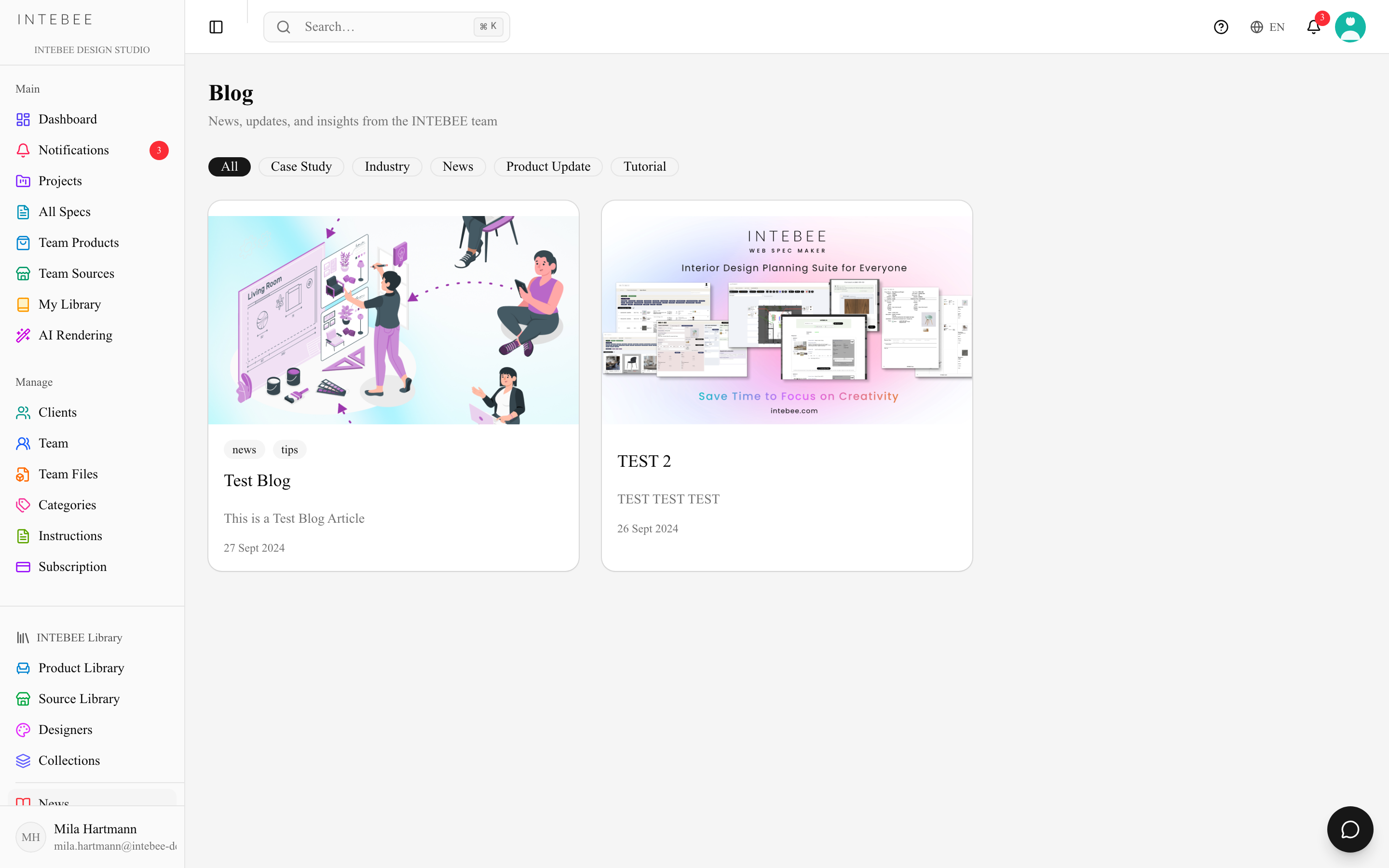
Product releases and platform updates from INTEBEE, localized into multiple languages. Inside the app it is the INTEBEE News item at the foot of the sidebar's AI Public Library group.
Multilingual
Library content is translated into 8 languages (English, 日本語, 中文, 한국어, Français, Deutsch, Italiano, Español). Inside the app these pages follow your App Language, so there is nothing extra to set; on the public marketing pages a language switcher sits in the header. Missing translations fall back to English.
Sources and disclosures
Every public Library page (product, brand, designer and collection) ends with a Sources list of the web pages used to write the article, each with a link that opens in a new tab. Individual image URLs are not listed there. Below it, a note states that the article is not affiliate advertising and is published to help spread interior-design products, followed by a small note that the article was created with the help of AI and may contain errors. This footer is the same on every Library page and is shown in the page language.
Photo credits
Some Library pictures are published under licences that require attribution (for example Wikimedia Commons CC BY or CC BY-SA). Those pictures show a small Photo: author · licence line under the picture (and in the full-screen view). The author links to the original page and the licence links to its terms. Pictures without a credit show nothing.
Image sources, official information and rights requests
- Every picture names its source. Under each image on a product, brand, designer or collection page — in the carousel, the full-screen view and pictures inside the article — a line shows Image source (brand and product), that the image belongs to its rights holders and is quoted to accompany INTEBEE's own design commentary, and a link to the official product page (or the official website for brands, designers and collections). When a licence credit exists (for example Creative Commons), the author, licence and Original source are shown too.
- Thumbnails in the catalog, on brand / designer pages and in the app carry a small source tag (link icon + brand.com) that opens the official page in a new tab; the same tag sits on the main picture of each product, brand and designer page.
- Official product information: each product page has a box explaining that specifications, finishes and availability may change and that the manufacturer's official website is the definitive source, with a button to the official product page.
- Image use & copyright policy (intebee.com/library/policy, 8 languages; the English text prevails): how images are presented, the copyright and attribution policy (permissions, licences or statutory exceptions such as quotation under Article 32 of the Japanese Copyright Act), trademarks, and how rights holders can ask for corrections or removal. It is linked from every image source line and every Library page footer. The Terms of Use (Intellectual Property) point to it.
- Corrections, edits & enquiries about Library content: library@intebee.com — a tinted panel at the foot of every Library page (signed out and signed in; on the public site above the Partner programme) says so. Attribution, copyright or legal matters: legal@intebee.com, with the INTEBEE URL, the material concerned and the request. A source credit or link does not by itself grant any right to reuse an image. The same panel notes that INTEBEE is not a representative of, and does not sell or broker, any product, designer or brand; that articles are research, commentary and critique based on the official websites; that questions about a product, brand or designer go directly to its official channels; and that INTEBEE receives no advertising or affiliate income for the Library.